Designers and Illustrators
Develop standalone elements, lettering, and compositions for layouts and visual identities.

Seedream 5.5 generates lifelike images and transparent assets from text or image references. It improves fine text and supports repeated, targeted edits while preserving the areas you want to keep.
Explore six images from the official Seedream 5.5 gallery. Use an editable starting prompt to create your own interpretation.

Seedream 5.5
A Cat at the Bar

Seedream 5.5
A Quiet Afternoon
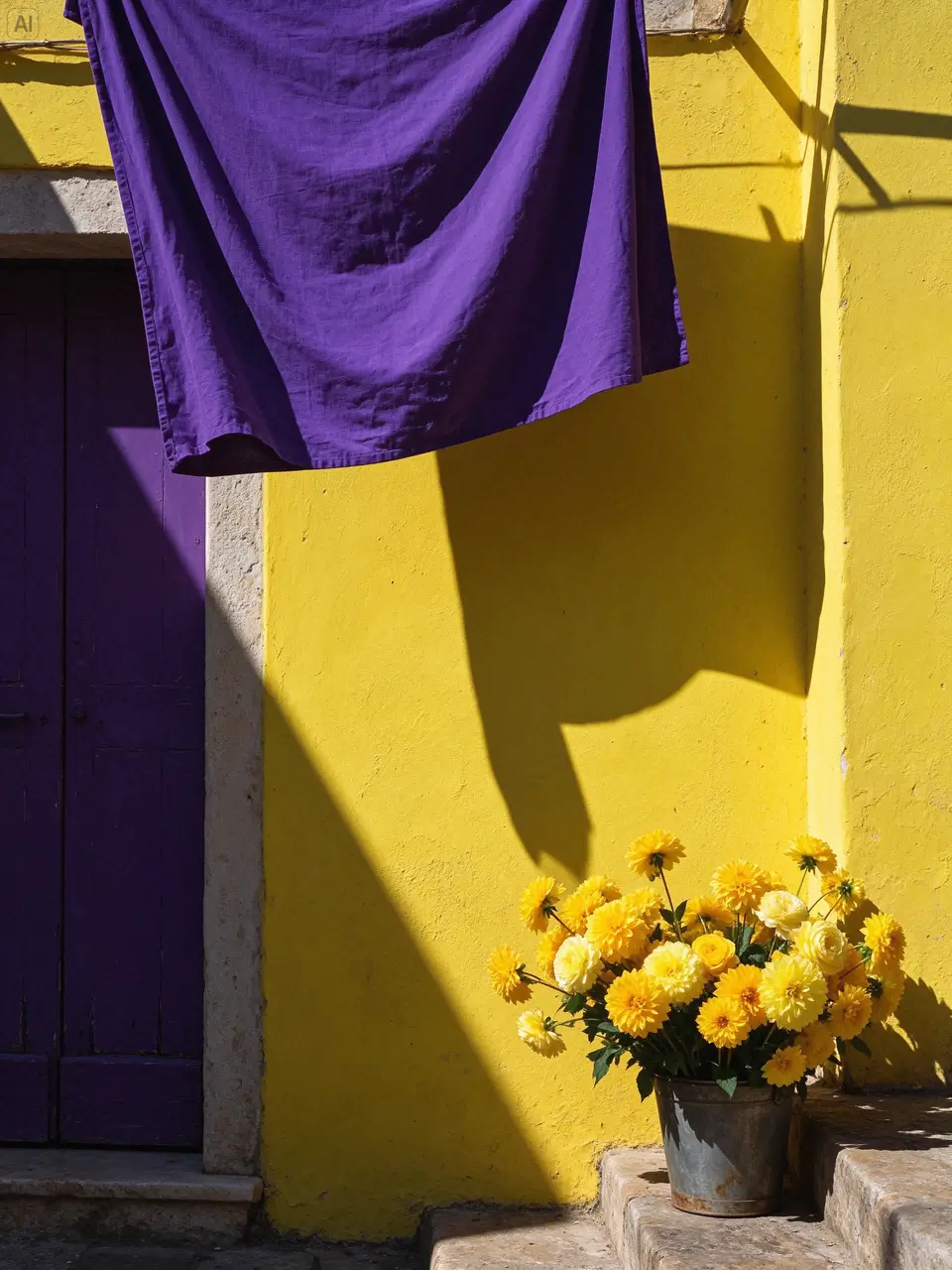
Seedream 5.5
Purple and Yellow
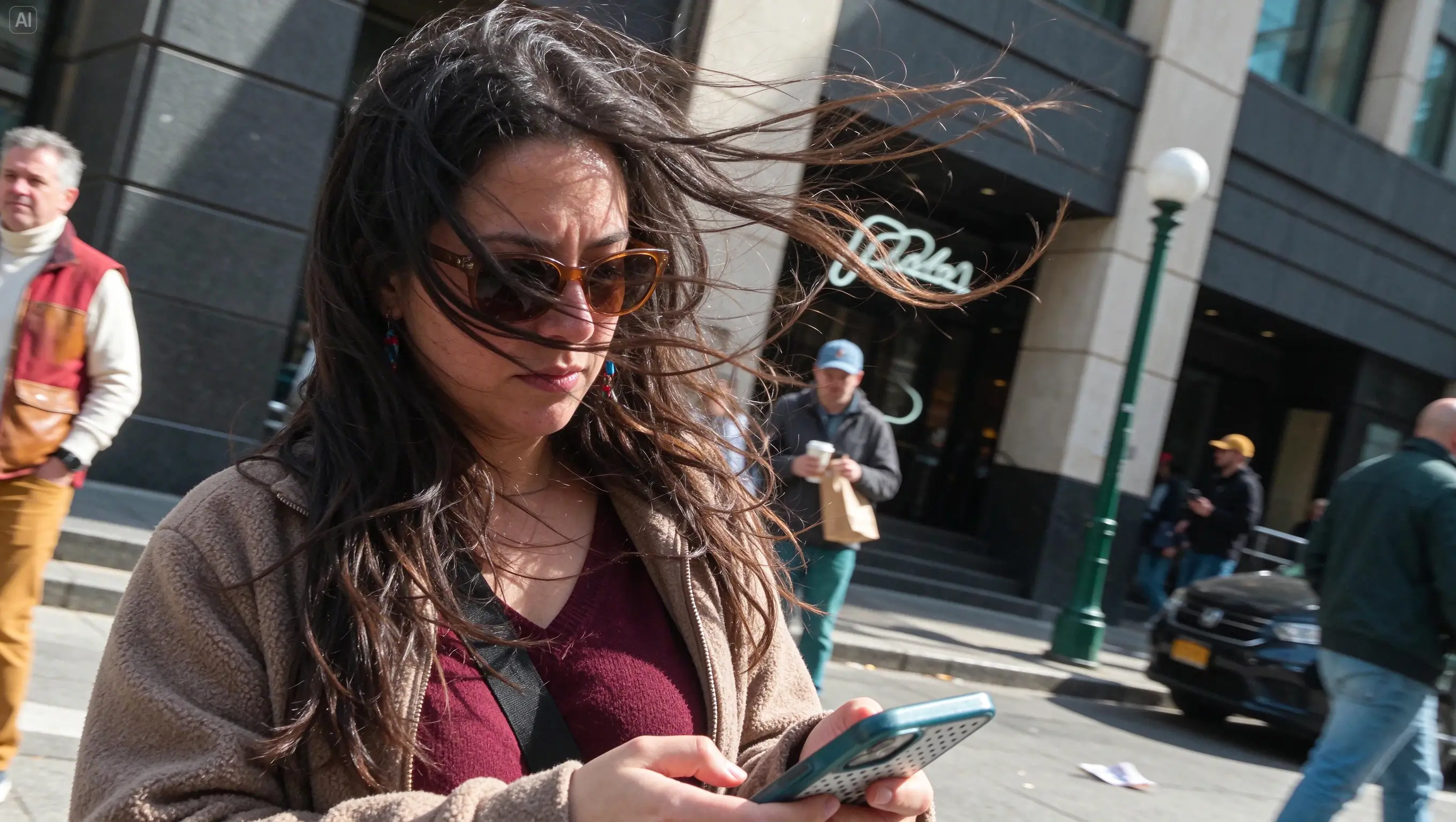
Seedream 5.5
A Windy Street
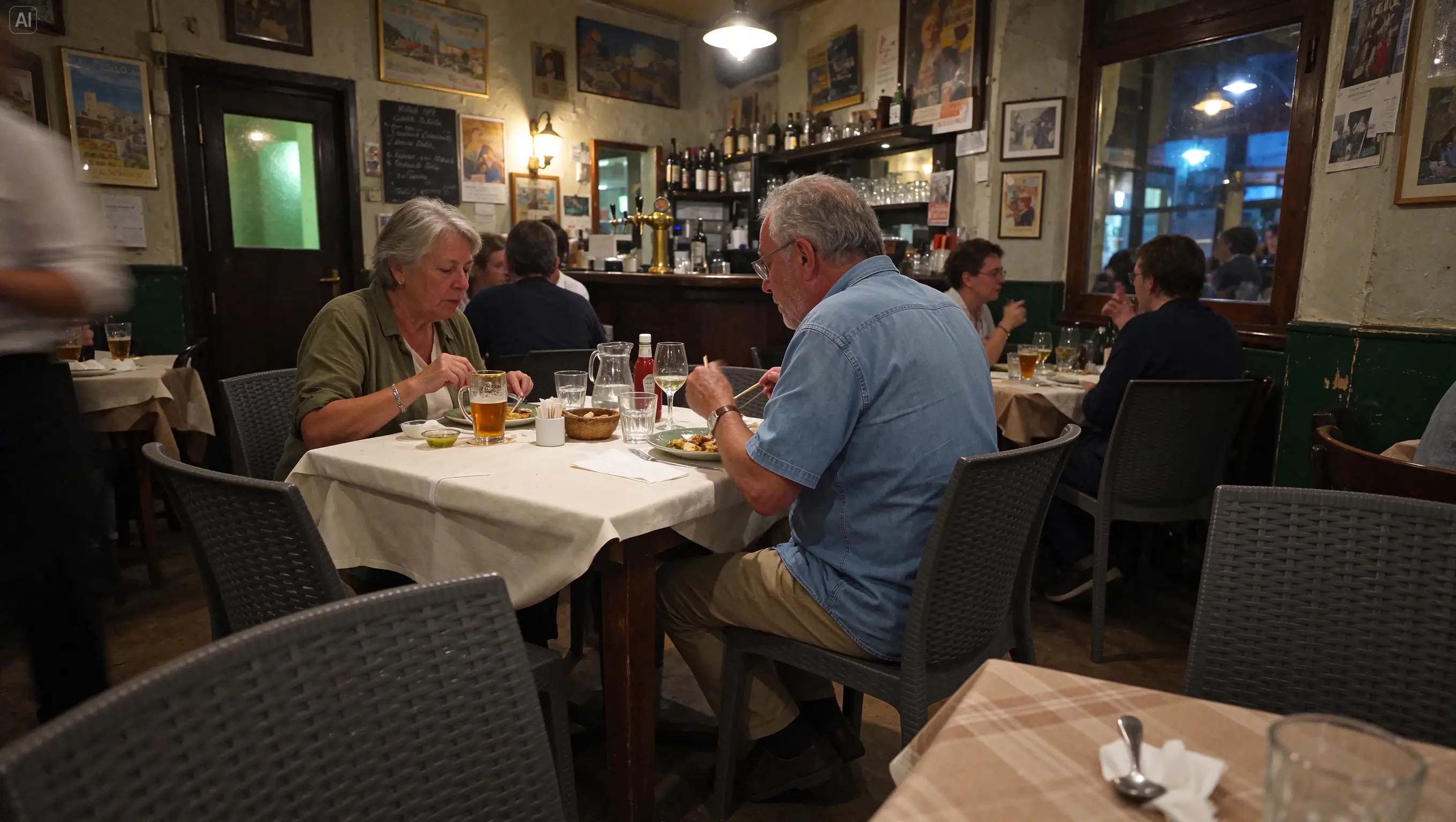
Seedream 5.5
An Evening Bistro

Seedream 5.5
Reflections After Rain
A ByteDance Seed image model for creating visuals and refining them through successive edits.
ByteDance Seed introduced Seedream 5.5 on November 9, 2026. The release combines more controlled editing with native transparency and improved photographic detail.
The model accepts text and image references. Its launch demonstrations cover portraits, interiors, illustrations, lettering, and reusable visual assets.
Build your image around three creative workflows:
Explore improvements in editing control, reusable assets, and visual detail.
ByteDance demonstrates 100 successive editing rounds, using each result as the next input. This is a model demonstration, not a guarantee that every edit will be perfect.
Targeted editing is designed to retain unedited pixels and limit unwanted color drift. Check important details after each revision.
Create RGBA assets with fully or partly transparent areas. An alpha channel allows the asset to sit over other backgrounds.
Feathers, lettering, and soft material edges can become reusable visual elements with less manual cleanup.
Explore skin, cloth, glass, and wet surfaces with more nuanced texture and illumination.
The release improves compact English and Chinese lettering. Proofread names, numbers, and small captions before sharing a result.
Use generated images and focused revisions across personal and professional projects.
Develop standalone elements, lettering, and compositions for layouts and visual identities.
Explore photographic scenes, character ideas, and illustrations for posts and stories.
Refine campaign concepts and product settings while retaining details that already work.
Build illustrated explanations and text-led visuals, then review their wording and accuracy.
Start with a clear brief, then review each result before your next revision.
Enter a prompt or use a gallery example. Add a reference image when you want to guide an edit.
Select your model, aspect ratio, resolution, and output format. Review the displayed credit total before generating.
Inspect your image and download it. To continue editing, use the result as a reference and describe the next change.
Model capabilities documented in the official November 2026 release.
| Developer | ByteDance Seed |
| Release date | November 9, 2026 |
| Inputs | Text and image references |
| Workflows | Image generation and image editing |
| Editing demonstration | 100 successive rounds |
| Transparency | Native RGBA with full and partial transparency |
| Text rendering | Improved English and Chinese text, including small captions |
| Maximum resolution | Not listed in the reviewed release materials |
| Supported aspect-ratio limits | Not listed in the reviewed release materials |
Last updated: November 11, 2026
Compare the new release with the preceding model used in ByteDance’s evaluation.
| Capability | Seedream 5.5 | Seedream 5.0 Pro |
|---|---|---|
| Text and image inputs | Supported | Supported |
| Image generation and editing | Supported | Supported |
| 100-round editing demonstration | Shown in the 5.5 release | Not listed in the reviewed comparison |
| Native RGBA assets | Introduced in the 5.5 release | Not listed in the reviewed comparison |
| Text and realism evaluation | Improved results in ByteDance’s comparison | Previous-generation evaluation baseline |
Seedream 5.5 Advantages: Adds native transparency and stronger control over repeated edits.
Seedream 5.0 Pro Advantages: Supports established text-to-image and reference-image workflows.
Explore Seedream 5.5 for reusable transparent assets and iterative editing. Seedream 5.0 Pro remains an option for continuing an existing image workflow.
Compare Picir AI plans and included credits. The generator displays the cost for the model and settings you select before you submit.
Find another creative workflow on Picir AI.
Learn about the model, image workflows, examples, and credits.
Explore the Seedream 5.5 AI Image Generator page on Picir AI. Browse the examples, add a prompt, and select your model and settings in the generator.
It is an image-generation and editing model from ByteDance Seed, released on November 9, 2026. Its main additions include native transparency and more stable repeated editing.
In ByteDance’s demonstration, the output of each edit became the input for the next. It shows sustained editing of one image, not 100 separate images from a single request.
The model introduces native RGBA output. The alpha channel represents transparency, including partly transparent edges, for use in layered compositions.
The release adds transparent asset generation and improves editing stability, realism, and text. The comparison above summarizes the capabilities documented for the two versions.
The reviewed official release does not list a complete resolution or aspect-ratio specification. Use the controls shown for the model selected in the generator.
No. It fills the prompt and supported settings for you to review or edit. Generation starts only when you choose to submit.
Generation uses credits. The total depends on the selected model and settings and is shown before submission. The plans section lists the credits included in each subscription.
Name the part you want to change and describe the desired result. Also name important details to preserve, such as the camera angle, subject identity, or lighting. Review the result before adding another change.