Designers and Art Directors
Explore poster concepts, campaign scenes, and alternate compositions with a defined palette and material treatment.

MiniMax H3 Image generates detailed images from text and edits one or more reference images. It combines native output around 16 megapixels with precise instructions for subjects, materials, lighting, and composition.
Explore six official images, then use an editable starting prompt to create your own interpretation.
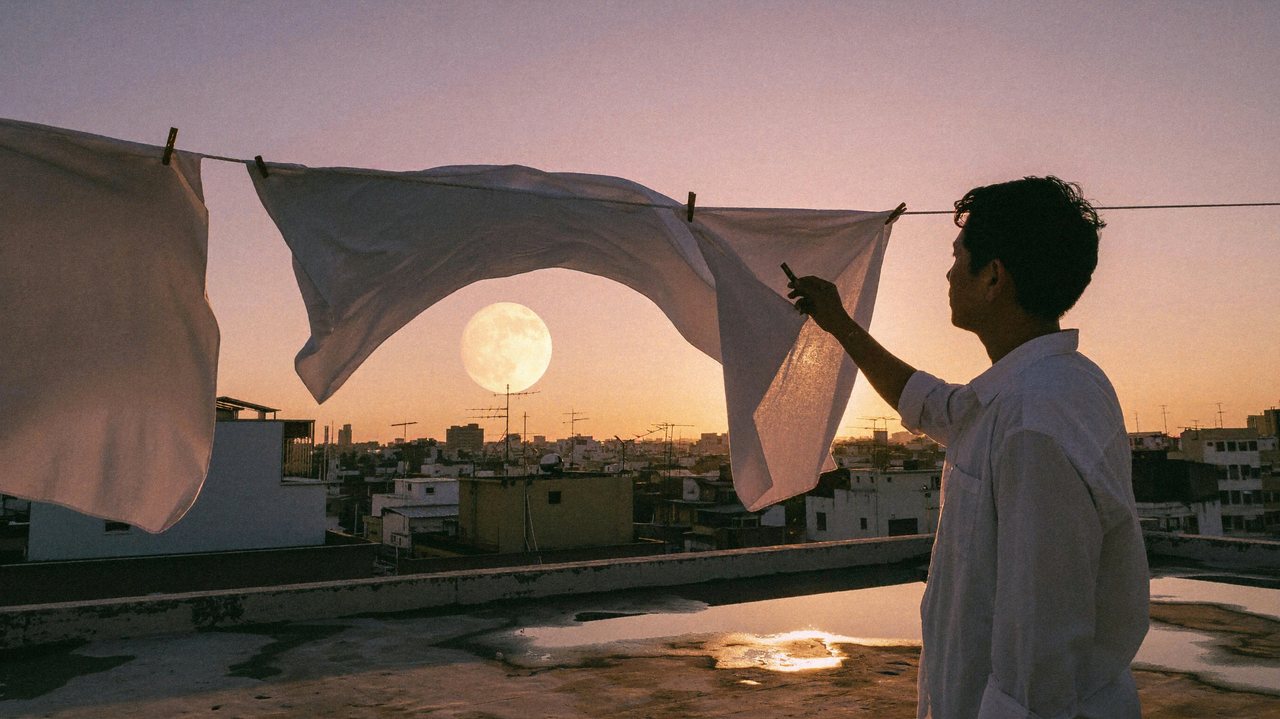
MiniMax H3 Image
Rooftop at Dusk
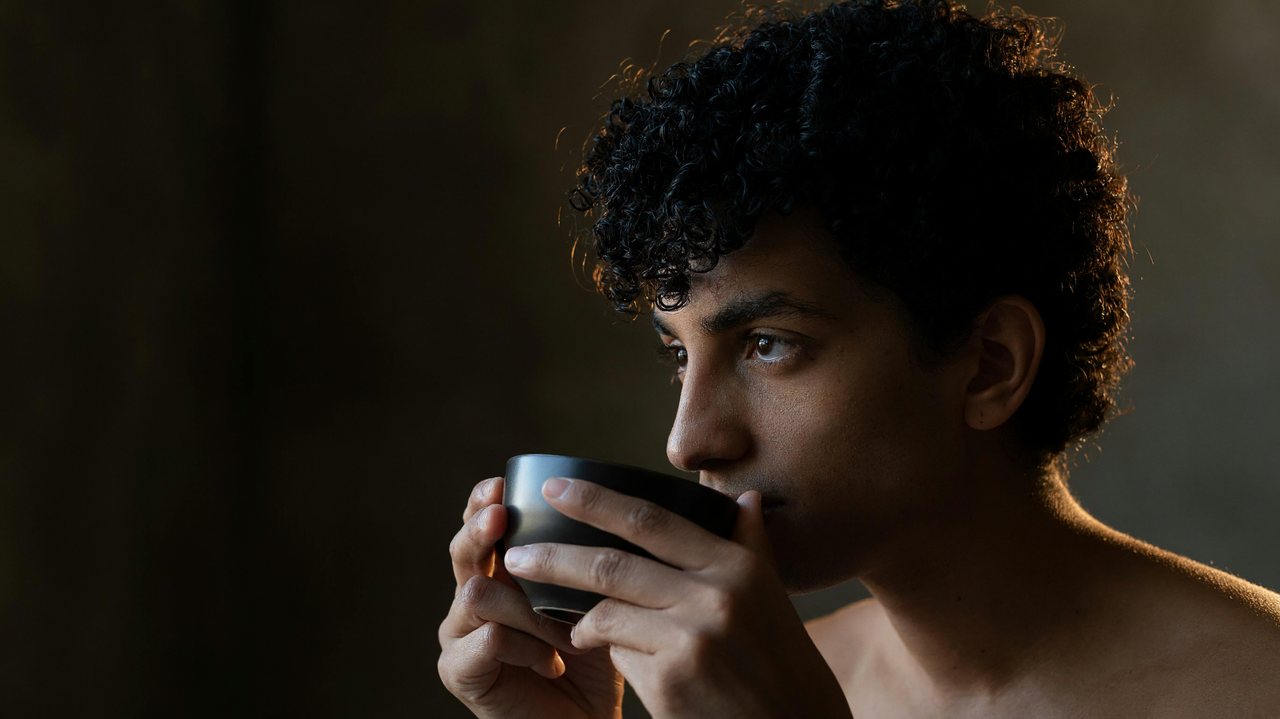
MiniMax H3 Image
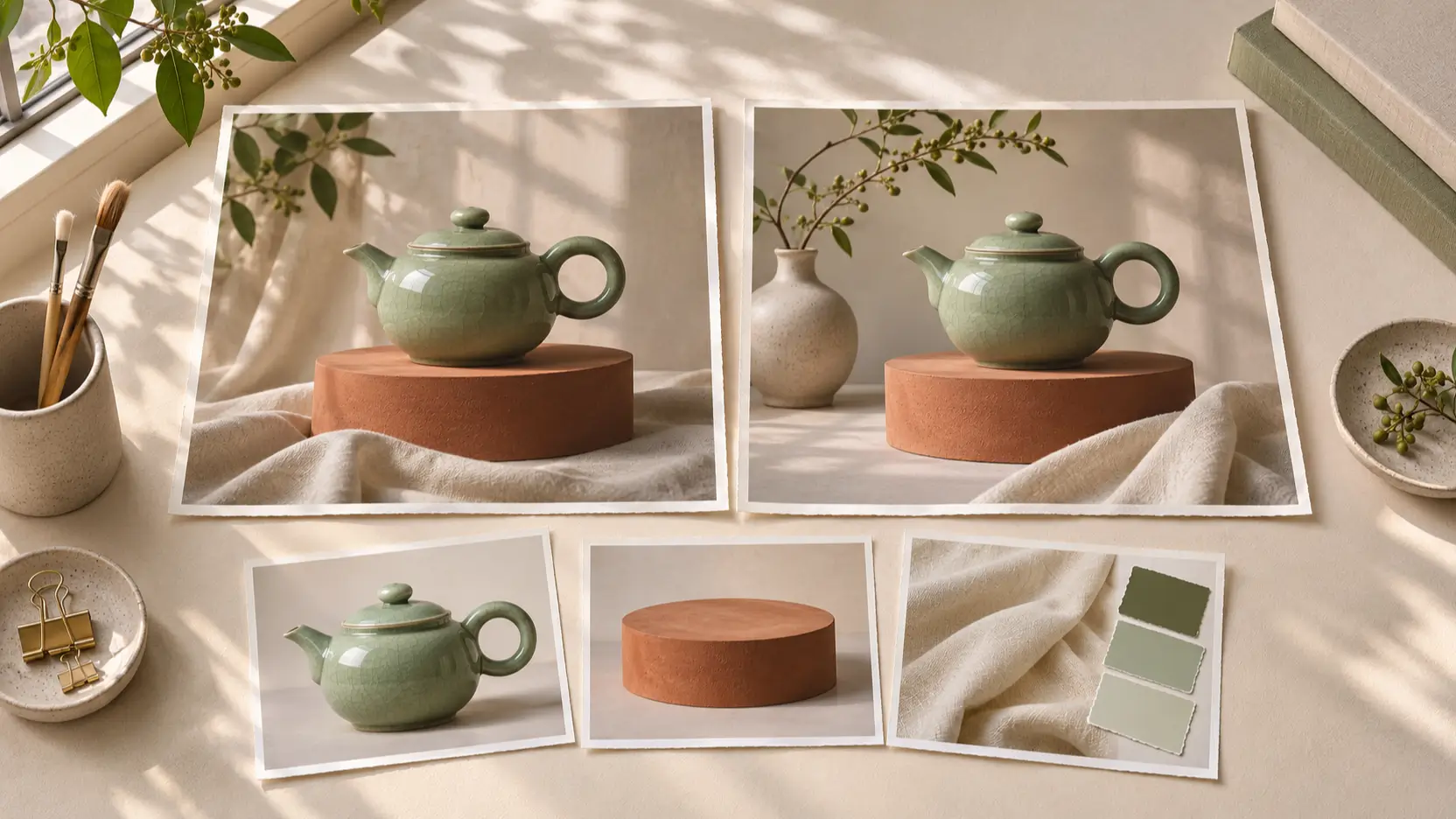
A Pause Before Tea
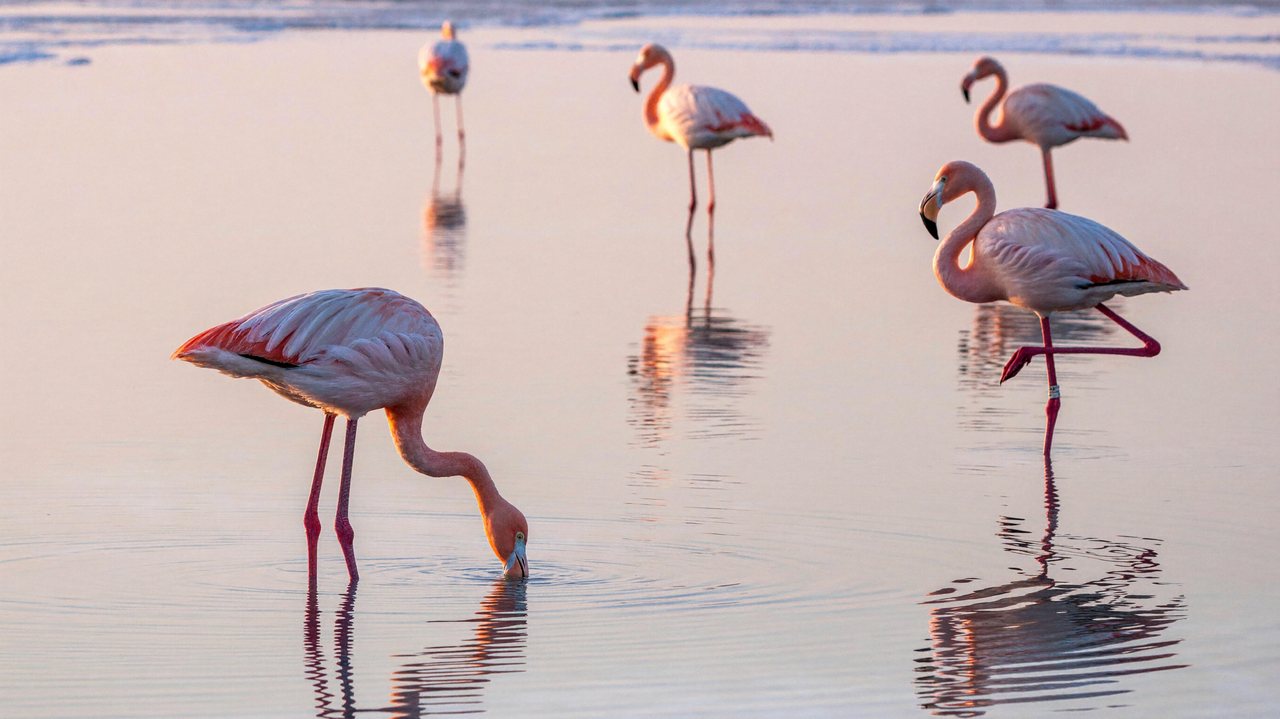
MiniMax H3 Image
Flamingos at Dawn
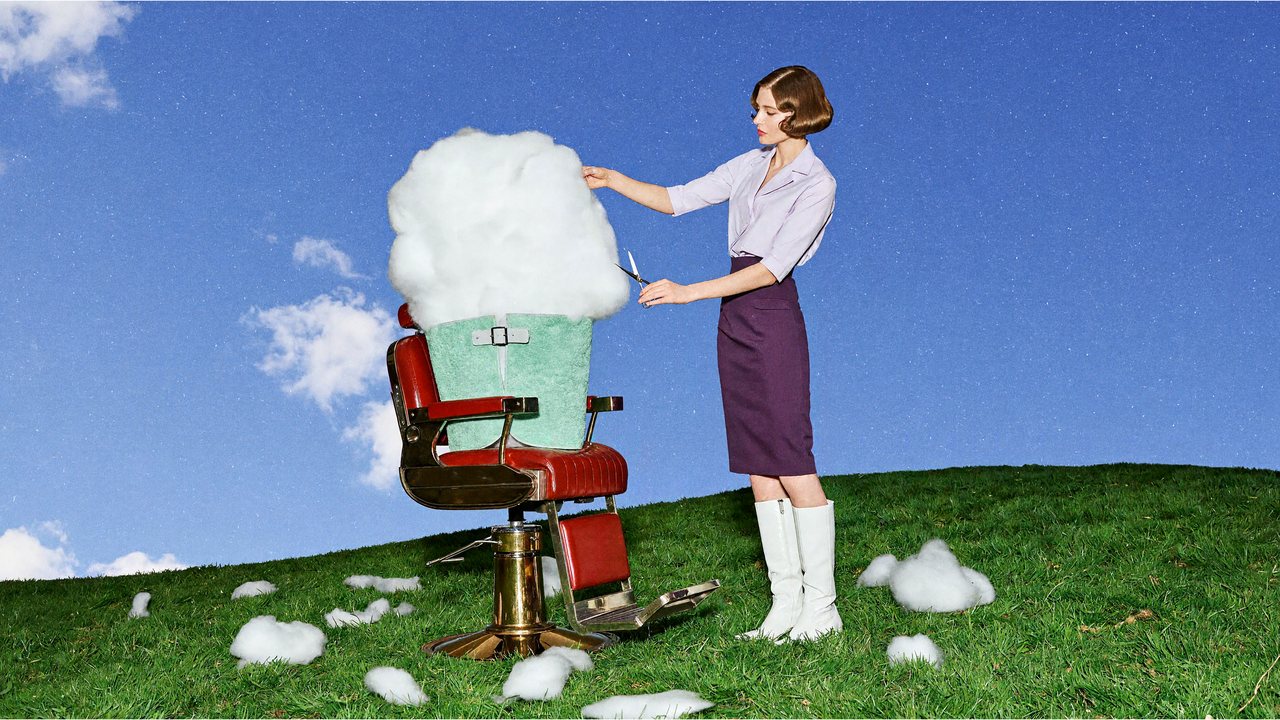
MiniMax H3 Image
A Cloud at the Barber
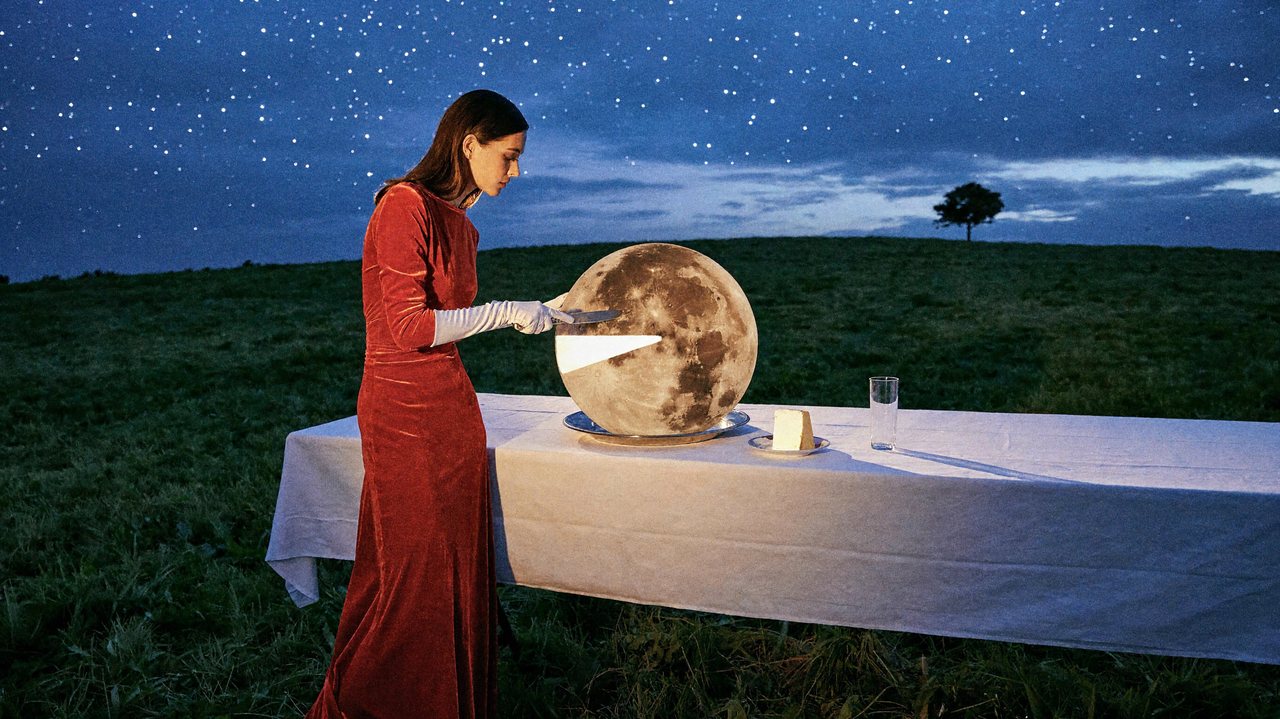
MiniMax H3 Image
Slicing the Moon
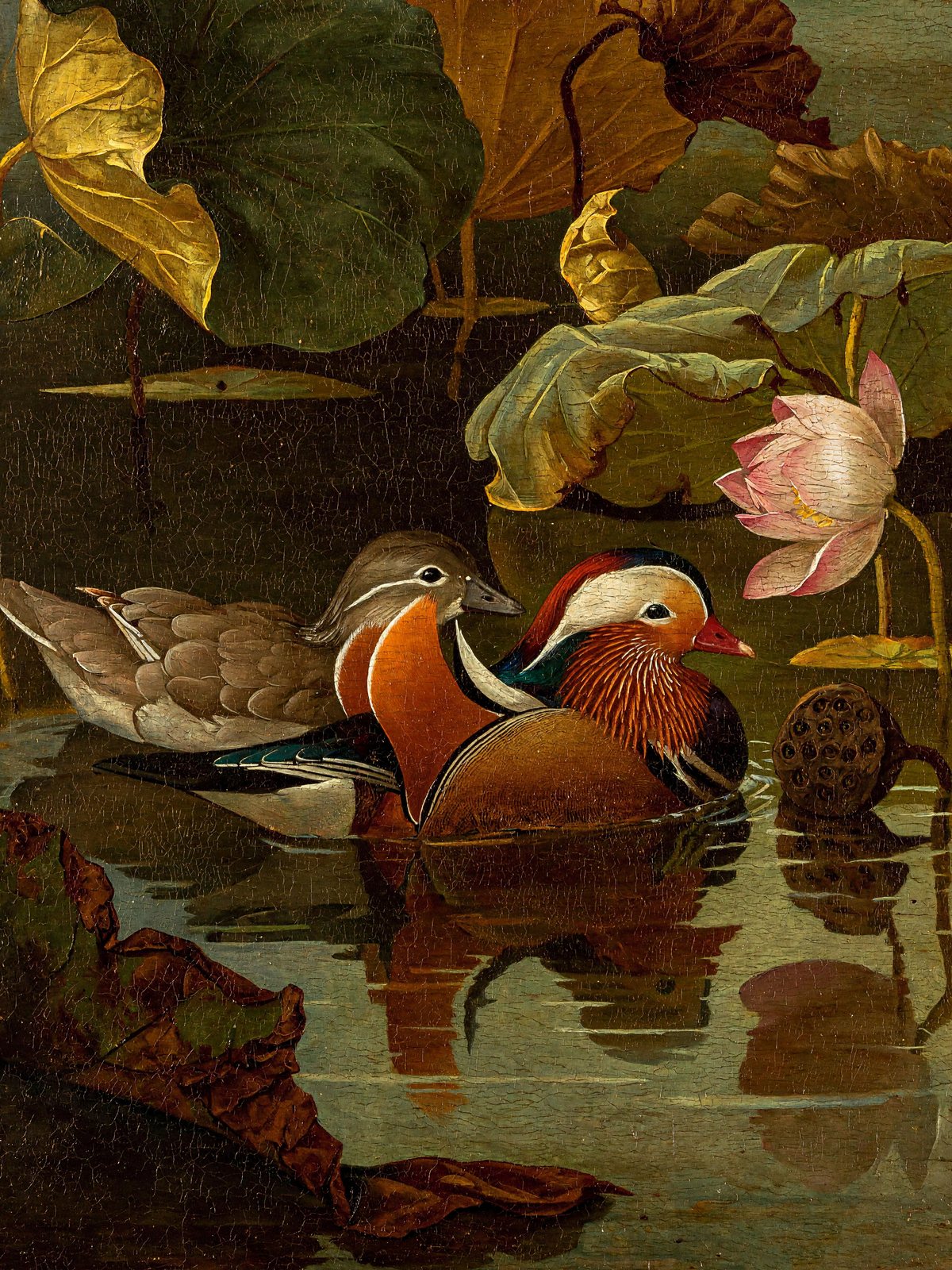
MiniMax H3 Image
Mandarin Ducks in Oils
An open-weight MiniMax model that brings image generation and editing into one checkpoint.
MiniMax introduced H3 Image in November 2026; its English release announcement is dated November 11. Built on the H3 architecture, the image model focuses on still images, with text-to-image creation and reference-guided editing.
Its native images are typically around 16 megapixels, with detailed textures and flexible composition. The public gallery spans photography, imagined worlds, illustration, and multi-image edits.
Work with three ways of shaping an image:
Control the scene, preserve useful reference details, and explore different visual styles.
MiniMax H3 Image produces images around 16 megapixels directly, including 4096 × 4096 square output, without a separate upscaler.
Guide an edit with one or more images. Assign references distinct roles, such as a room layout, an object, or a character, to make the intended composition clear.
The same checkpoint handles new images and edits. Describe a full scene from scratch or specify changes to a reference while naming the details to preserve.
The official photography examples explore backlit hair, translucent cloth, water reflections, and fine surface detail in coherent lighting.
Specify spatial relationships, colors, objects, and visible text. Clear instructions help guide complex layouts; inspect generated text and details before using the result.
Explore documentary photography, surreal fashion scenes, paintings, and illustrated worlds. Describe the visible materials and lighting behind the style you want.
Develop ideas for everyday design, storytelling, illustration, and visual planning.
Explore poster concepts, campaign scenes, and alternate compositions with a defined palette and material treatment.
Build a visual setting, experiment with mood, and turn a written scene into a photographic or illustrated image.
Explore environments, characters, and props in different styles before committing to a finished direction.
Plan reference-guided compositions that combine objects or furnishings while keeping their intended roles clear.
Move from an idea to an image with a prompt and the controls in the generator.
Write a prompt or select a gallery example. Start with the main subject, then describe its surroundings, light, and visual style.
Select a model and the available aspect ratio and output format. Review the credit total shown before submitting.
Generate your image, inspect the details, and download your result. Refine the prompt to explore a different composition or treatment.
Target-model specifications from the official model card; available controls follow the model selected in the generator.
| Developer | MiniMax |
| Release announcement | November 11, 2026 (English announcement) |
| Workflows | Text-to-image generation and image editing |
| Reference images | 1–16 for image editing |
| Native image area | Around 16 megapixels; documented working range about 4–20 MP |
| Square output | 4096 × 4096 (1:1) |
| Landscape output | 4736 × 3552 (4:3); 5024 × 3360 (3:2); 5472 × 3072 (16:9) |
| Portrait output | 3552 × 4736 (3:4); 3360 × 5024 (2:3); 3072 × 5472 (9:16) |
| Ultrawide output | 6272 × 2688 (21:9) |
| Sampling steps | 6 in the released checkpoint |
| Negative prompt | Not supported by the released checkpoint |
Last updated: November 12, 2026
Compare the image-focused H3 model with MiniMax’s earlier image-01.
| Spec | MiniMax H3 Image | MiniMax image-01 |
|---|---|---|
| Text-to-image | Supported | Supported |
| Reference workflow | General image editing with 1–16 references | Character-reference generation |
| Square image size | 4096 × 4096 native example | 1024 × 1024 aspect-ratio preset; custom sides up to 2048 px |
| Landscape and portrait | Square, landscape, portrait, and 21:9 examples | Eight documented aspect-ratio presets |
| Creative focus | High-resolution detail and multi-reference edits | Text prompts and character-guided images |
MiniMax H3 Image Advantages: Larger native images and richer multi-reference composition for detailed scenes.
MiniMax image-01 Advantages: A simpler text and character-reference workflow with familiar aspect-ratio presets.
Explore H3 Image for fine detail and multi-image editing. Consider image-01 when continuing an established text or character-reference workflow.
Compare Picir AI plans and included credits. Your generation cost follows the model and settings selected in the tool and is shown before submission.
Find another image workflow on Picir AI.
Explore prompt ideas and practical image workflows.
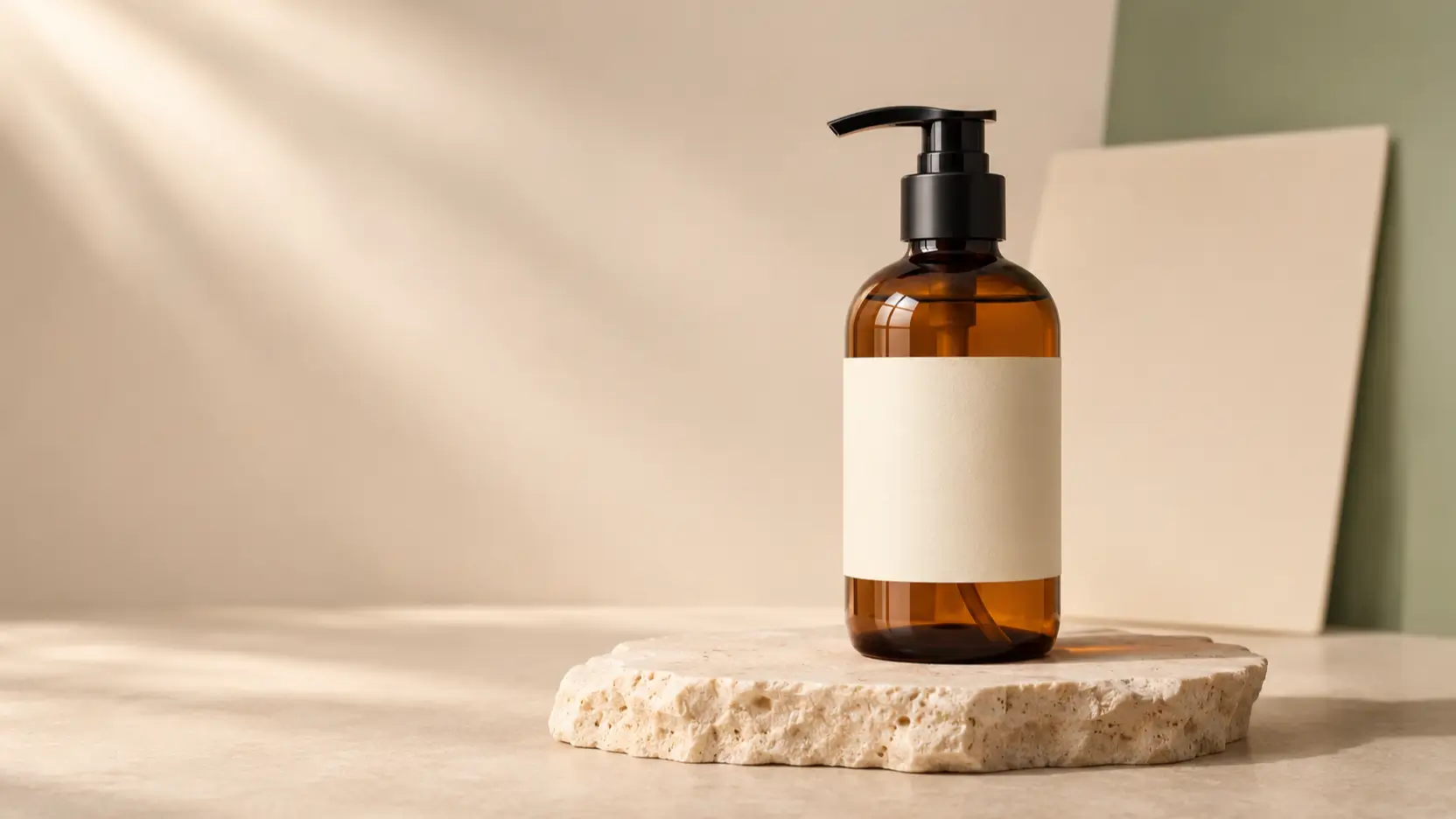
Learn MiniMax H3 Image product photography with reference photos, practical prompts, API settings, and checks for labels, lighting, and product details.
Read More
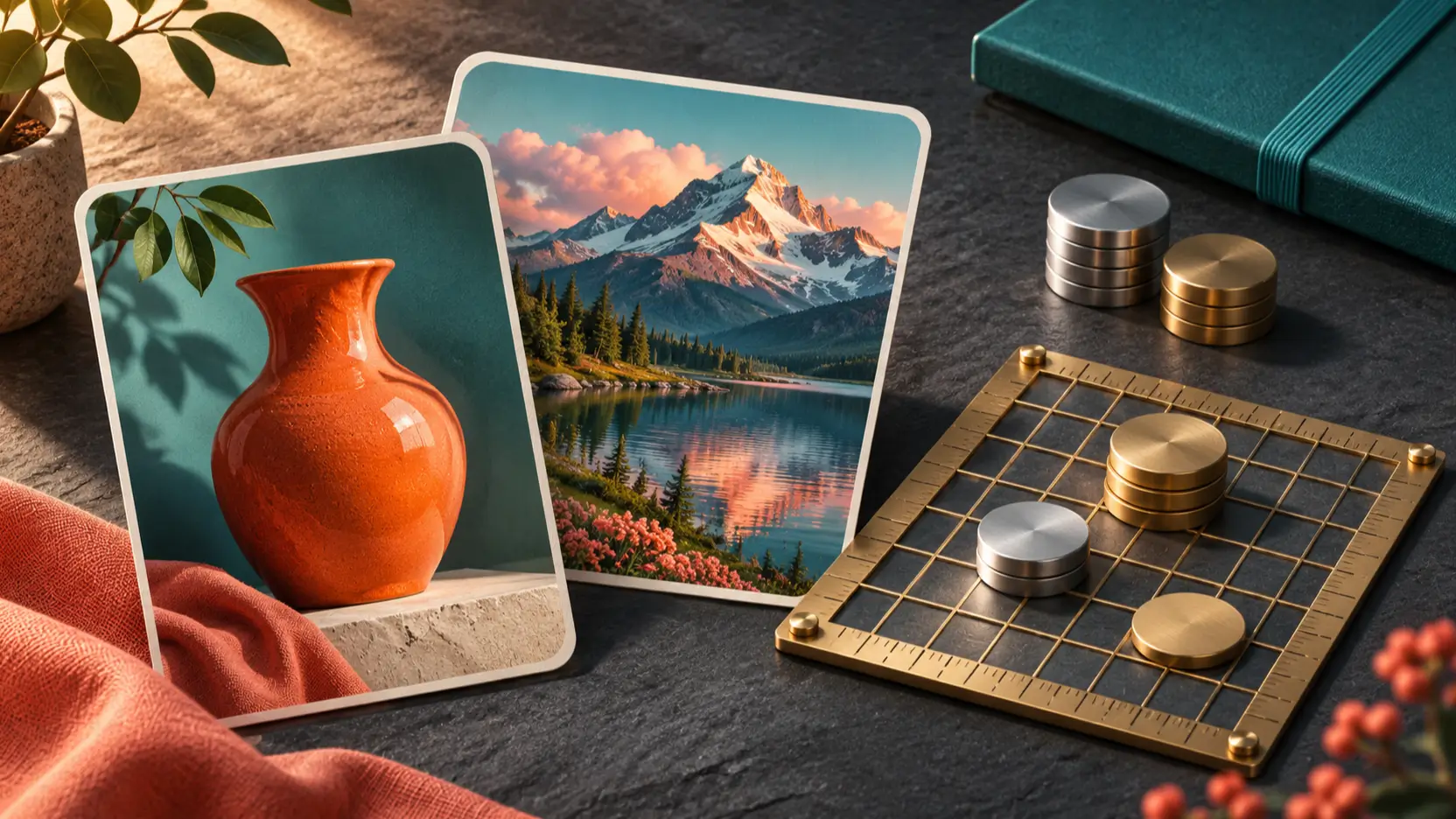
Explore MiniMax H3 Image pricing, Standard and Highspeed API rates, 4K discounts, prompt enhancement charges, and practical budgets for finished images.
Read More
Compare MiniMax H3 Image vs GPT Image 2.6 for multi-reference generation, editing controls, reference fidelity, and the cost of getting a usable result.
Read More
Learn about image sizes, reference editing, prompts, examples, and credits.
Explore the MiniMax H3 Image AI Image Generator page on Picir AI. Browse the examples, write a prompt, and select your model and settings in the generator.
It is a MiniMax image-generation and editing model introduced in November 2026. One checkpoint supports creating images from text and editing reference images.
The model card describes native output around 16 megapixels, including 4096 × 4096 square images and 5472 × 3072 landscape images. Its documented working range is about 4–20 megapixels; these are target-model specifications.
H3 Image supports one to sixteen reference images. Give each image a role and describe what should change or remain consistent. Reference controls depend on the model selected in the tool.
H3 Image creates and edits still images. The separate H3 video model generates moving images and audio; its video limits do not describe H3 Image.
Start with the main subject and layout, then add lighting, materials, and style. For an edit, name the change and the details to preserve. Include exact wording and placement when asking for text.
No. It replaces the prompt and applies supported example settings for you to review. Generation starts only when you submit. The gallery shows official H3 Image results; your chosen model and settings influence your output.
The generator displays the credit cost for the selected model and settings before submission. The plans section lists included credits. Changing the model or image count can change the total.
Review lettering, fine details, and consistency before sharing a result. Use references you have permission to use, and make a new version when the composition needs refinement.