
MiniMax H3 Image vs GPT Image 2.6: Multi-Reference Image Generation Compared
on 8 days ago
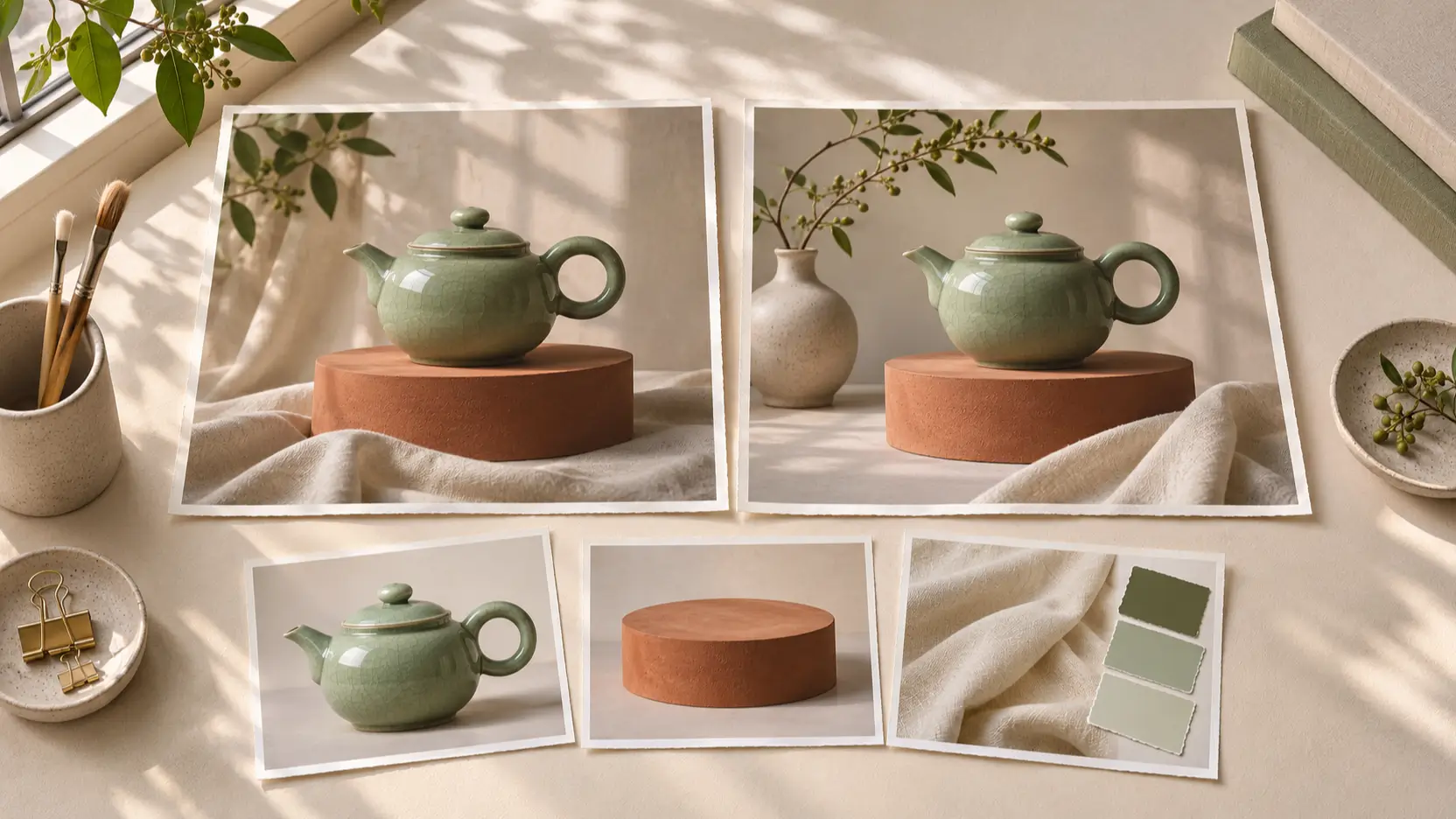
For MiniMax H3 Image vs GPT Image 2.6, start with the edit you need to make. Both document support for up to 16 input images. MiniMax offers an open-weight deployment route alongside its API; GPT Image 2.6 provides planning controls and markup-guided editing. Choose around the product details you need to preserve and how you want to direct revisions.
This comparison reviews official documentation on November 12, 2026. It is not a hands-on benchmark. The three AI-generated illustrations are editorial concepts, not output samples from either model.
MiniMax H3 Image vs GPT Image 2.6 at a glance
Start with the controls and setup your team needs, then compare output quality on a real brief. The recommendations below are starting points for evaluation, not measured rankings.
| Decision | MiniMax H3 Image | GPT Image 2.6 |
|---|---|---|
| Who should evaluate it? | Teams interested in a hosted API or their own deployment | Teams wanting explicit planning and regional editing controls |
| Reference capacity | Up to 16 images in the editing API | Up to 16 images in the editing API |
| Setup effort | Choose a hosted route or maintain local infrastructure | Select an API variant and check the app's exposed settings |
| Important controls | Ordered references; hosted edits include prompt enhancement | Separate complexity and quality settings; markup-guided edits |
| Output quality decision | Check product identity and requested changes | Apply the same acceptance criteria to each variant |
MiniMax's official model card documents text-to-image generation, reference-based editing, downloadable weights, and local deployment options. Those options matter if your team wants to operate the model itself, but they add setup and maintenance work.
GPT Image 2.6 has two variants. OpenAI positions Flare for quicker iteration and Sunburst for demanding detail and precise edits. Record which one you use; “GPT Image 2.6” alone leaves out a meaningful comparison variable. OpenAI's prompting guide.
Multi-reference image generation: give every input a job
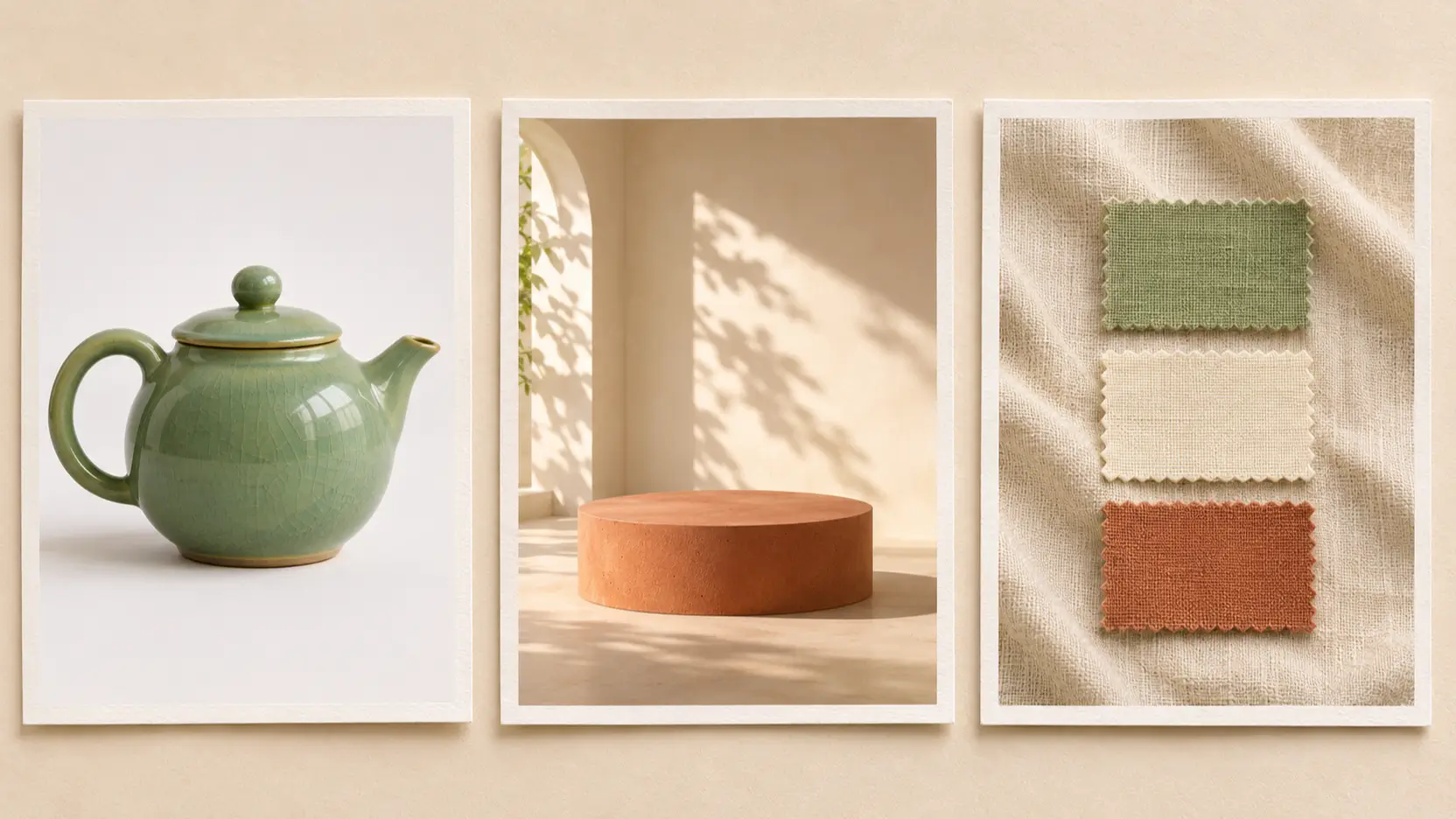
The shared reference limit does not tell you how faithfully either model will combine your inputs. MiniMax's editing API accepts one to 16 images. OpenAI's image edit reference also permits up to 16. Treat that as capacity, not a reason to fill every slot.
For a product scene, begin with three references: the product, the setting, and a palette or material sample. Write down what each contributes. A room photograph should guide the background without replacing the product; a fabric swatch should influence surrounding colors without recoloring its glaze.
A useful starting brief is:
Use image 1 as the product reference. Preserve the teapot's round handle, short spout, lid, and green glaze. Place it on the terracotta plinth from image 2. Use image 3 only for the surrounding fabric and color palette. Leave clear space above the teapot. Do not add lettering or accessories.
This is a suggested prompt, not a tested recipe. Adapt the reference numbering to your interface. MiniMax documents that file upload order determines Picture numbers, so keep the order with your saved prompt. MiniMax's generation guide.
If the product photo shows a side view but the room reference looks down from above, specify which camera angle to use. Also name any objects that should disappear. That gives you a clearer brief to judge the result against.
Image editing controls and the effort of using them
MiniMax's hosted image edits always apply prompt enhancement and return the resulting text in revised_prompt. Save that field when diagnosing a surprising composition. Your submitted wording is only part of the record needed to understand the request. This behavior is documented for the hosted API; do not assume a local deployment behaves identically. MiniMax prompt enhancement.
GPT Image 2.6 separates complexity, which controls planning, from quality, which controls rendering. Complexity supports low, medium, and high, with high as the default. OpenAI cautions that higher complexity can increase latency and introduce unwanted changes. More planning is therefore something to evaluate, not an automatic upgrade for every edit. OpenAI image generation guide.
For a regional change, OpenAI documents a separate transparent PNG annotation layer through markup. It applies to the first input image; additional images serve as references. The overlay must match the first image's dimensions after orientation, and it cannot be combined with mask. This offers a documented way to point at the area you want changed. Markup requirements.
Ease of use depends on the interface around these controls. Before committing to a workflow, check whether your app lets you order references, inspect revised prompts, or supply markup. An API feature may require extra preparation that a browser tool hides or does not expose.
Judge reference fidelity before visual polish
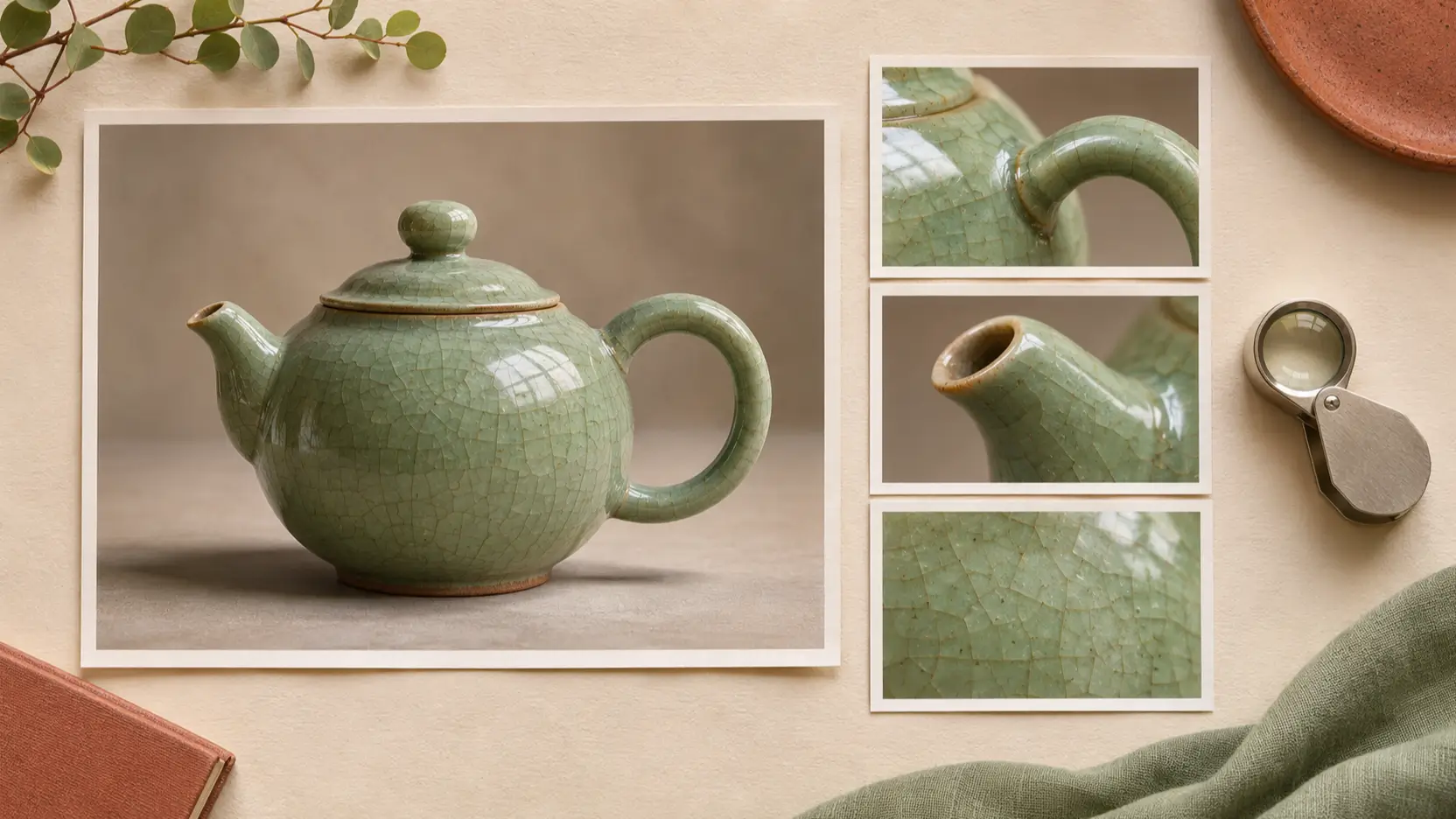
A polished image still fails a product brief if the object has changed. Make product consistency a separate pass from lighting and atmosphere. For the teapot example, inspect the handle opening, spout angle, lid fit, and glaze before deciding which image looks more appealing.
Use the same acceptance sheet for both models:
- Identity: Does the product retain the defining shapes and materials in its reference?
- Composition: Is it in the requested setting, with usable space for the intended crop?
- Reference separation: Did background colors or props leak into the product itself?
- Edit discipline: After a revision, did anything outside the requested change move or disappear?
Inspect details at full size, then view the image at its destination size. A tiny handle defect and a cramped mobile crop are different problems, and both can make an otherwise attractive asset unusable.
Keep every attempt in the comparison, including failures. Record the reference files, their order, model variant, dimensions, settings, and revisions. Where controls differ, explain the mismatch instead of treating the experiment as perfectly controlled. Documentation establishes available features; your own acceptance results establish suitability for your brief.
Compare cost and choose by workflow
Budget for approved images and the effort required to obtain them. Divide total generation spending, including rejected drafts and revisions, by the number of accepted assets. Track review and retouching time separately. This method avoids choosing a workflow solely because its first attempt looks inexpensive.
For MiniMax, consult Picir's MiniMax H3 Image pricing guide before estimating a larger run. Check the current charge in whichever platform you use; API pricing and a third-party service's credits are different purchasing arrangements.
Start with MiniMax if deployment control is a requirement you are prepared to maintain. Start with GPT Image 2.6 if its documented planning and annotation controls address a recurring editing problem. For a straightforward product composition, test both against the same brief; the 16-image limit gives neither an advantage by itself.
For a more detailed preparation process, see the MiniMax H3 product photography guide. Use it to organize your inputs, then retain the same product checks when evaluating another model.
FAQ
Can both models use 16 reference images?
Yes. Their documented editing APIs support up to 16 input images. File constraints and the limits of your chosen application still apply. Start with the references needed to express the brief, adding another only when it supplies missing information.
Which model preserves products better?
This documentation review does not establish a winner for reference fidelity. Compare recognizable product details across repeated attempts and revisions. A strong promotional sample or a larger upload limit cannot answer that question for your catalog.
Can I reuse the same prompt across both models?
Use the same creative brief, but adapt reference identifiers and request settings. Save MiniMax's enhanced prompt when available, and record GPT Image 2.6's variant and complexity. Those differences matter when explaining why two requests produced different results.
Conclusion
MiniMax H3 Image vs GPT Image 2.6 comes down to deployment needs, editing control, and the results your brief accepts. Start with a small, clearly assigned reference set. Compare identity preservation, revision effort, and spending per approved image, then choose the workflow you can repeat reliably.