
What Is Gemini Omni 1.2 Flash? Video Specs, Pricing, and Usage Guide
on 10 days ago
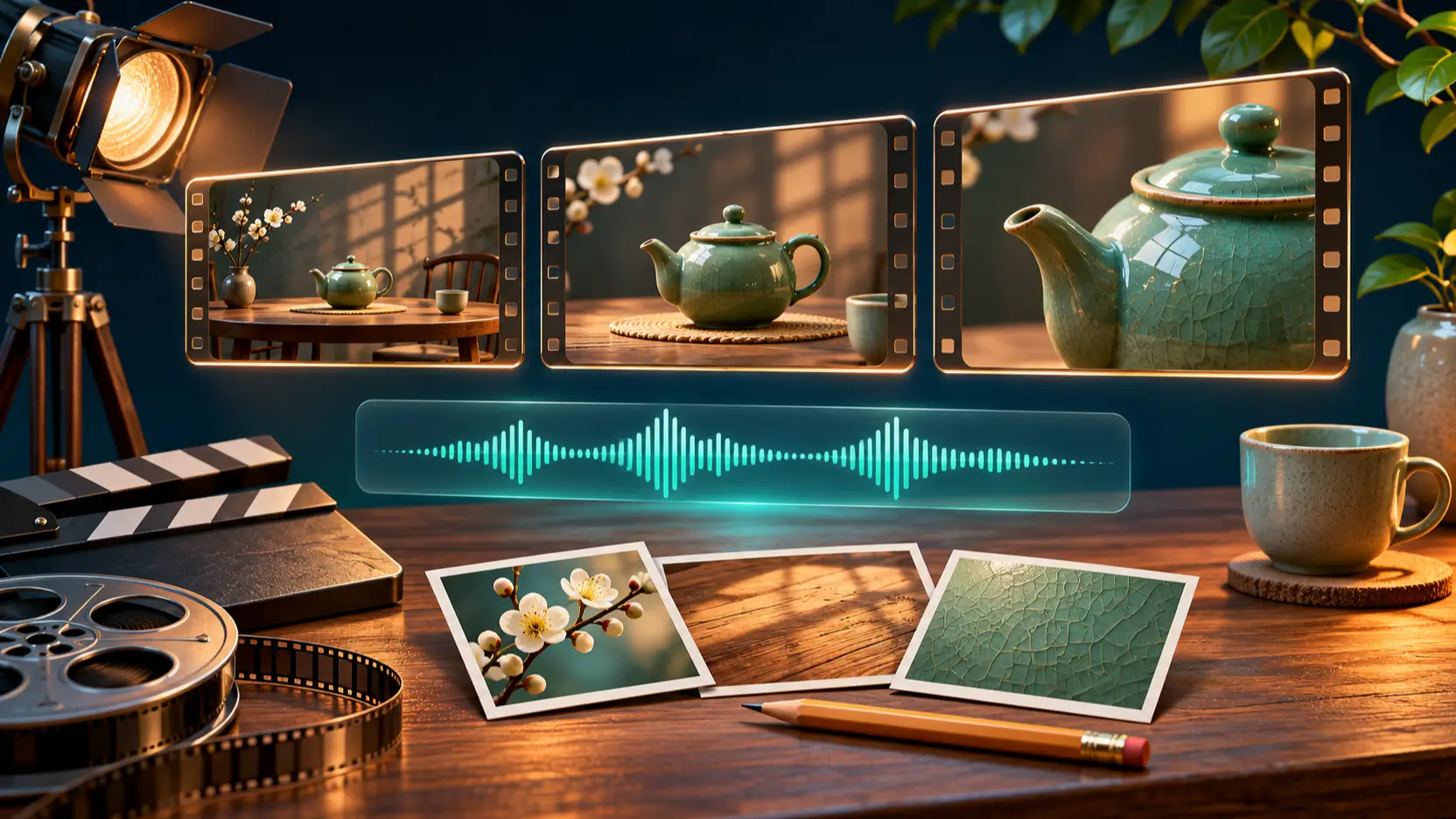
Gemini Omni 1.2 Flash is Google's model for generating and editing short videos with synchronized sound. Released on November 5, 2026, it supports clips up to 15 seconds and lets you revise a scene through follow-up instructions. For creators, the useful question is how those controls fit a real brief: which references to prepare, what each attempt costs, and what to inspect before exporting. Google's announcement.
This guide separates the headline capabilities from API-specific limits, then walks through a small product-video example. It is based on documentation checked November 10, 2026, rather than hands-on performance testing. All three illustrations are editorial concepts, not Omni-generated video samples.
Gemini Omni 1.2 Flash Specs: Check the Operation First
The model combines video creation, editing, extension, and upscaling. Its model identifier is gemini-omni-1.2-flash. The following limits come from the Google Cloud model reference.
| Setting | Published Cloud specification |
|---|---|
| Standard generation and editing | 3–15 seconds |
| First-and-last-frame generation | 3–10 seconds |
| Video extension | 3–10 seconds of continuation |
| Image inputs | Up to 10 images per prompt |
| Aspect ratios | 16:9 and 9:16 |
| Output resolutions | 360p, 720p, 1080p, and 4K |
| Sound generation | Speech, music, and sound effects |
The general 15-second limit does not apply to every operation. If you supply both an opening and closing image, plan a shorter shot. For example, an eight-second move from a full product view to a close-up fits the documented first-and-last-frame range.
Limits also differ between Google's services. The Gemini API video guide allows up to six reference images. For 11–15-second clips it allows one motion-reference video, up to three seconds long; for 3–10-second clips it allows up to three reference videos. Choose your access route before building a reference pack.
Pricing: Estimate the Video, Then Budget for Attempts
The Gemini API's Standard paid-tier rate card lists input at $1.50 per million tokens for text, images, and video. Output costs $9 per million text tokens, including thinking, and $12 per million video tokens. Video generation is unavailable on the free API tier. Official Gemini API pricing.
At 720p, Google specifies 5,792 video tokens per second. Multiplying that by $12 per million gives approximately $0.0695 per second. The familiar $0.07 headline is rounded.
| Example | Approximate video-output charge |
|---|---|
| One 10-second 720p clip | $0.70 |
| One 15-second 720p clip | $1.04 |
| Five 10-second 720p attempts | $3.48 |
These calculations exclude input and text-output charges, further edits, upscaling, and any separate platform fees. They estimate one component of spending, not a guaranteed invoice. Check the current rate card for the resolution and service you actually use.
Budget around approved clips. Suppose five drafts produce one shot worth keeping. Your useful comparison is the cost of those five attempts plus finishing, rather than the cheapest advertised generation. Keep a simple record of the prompt, settings, charge, and reason for rejecting a take. It helps reveal whether a cheaper model is cheaper for your particular brief.
Prepare References That Answer Different Questions
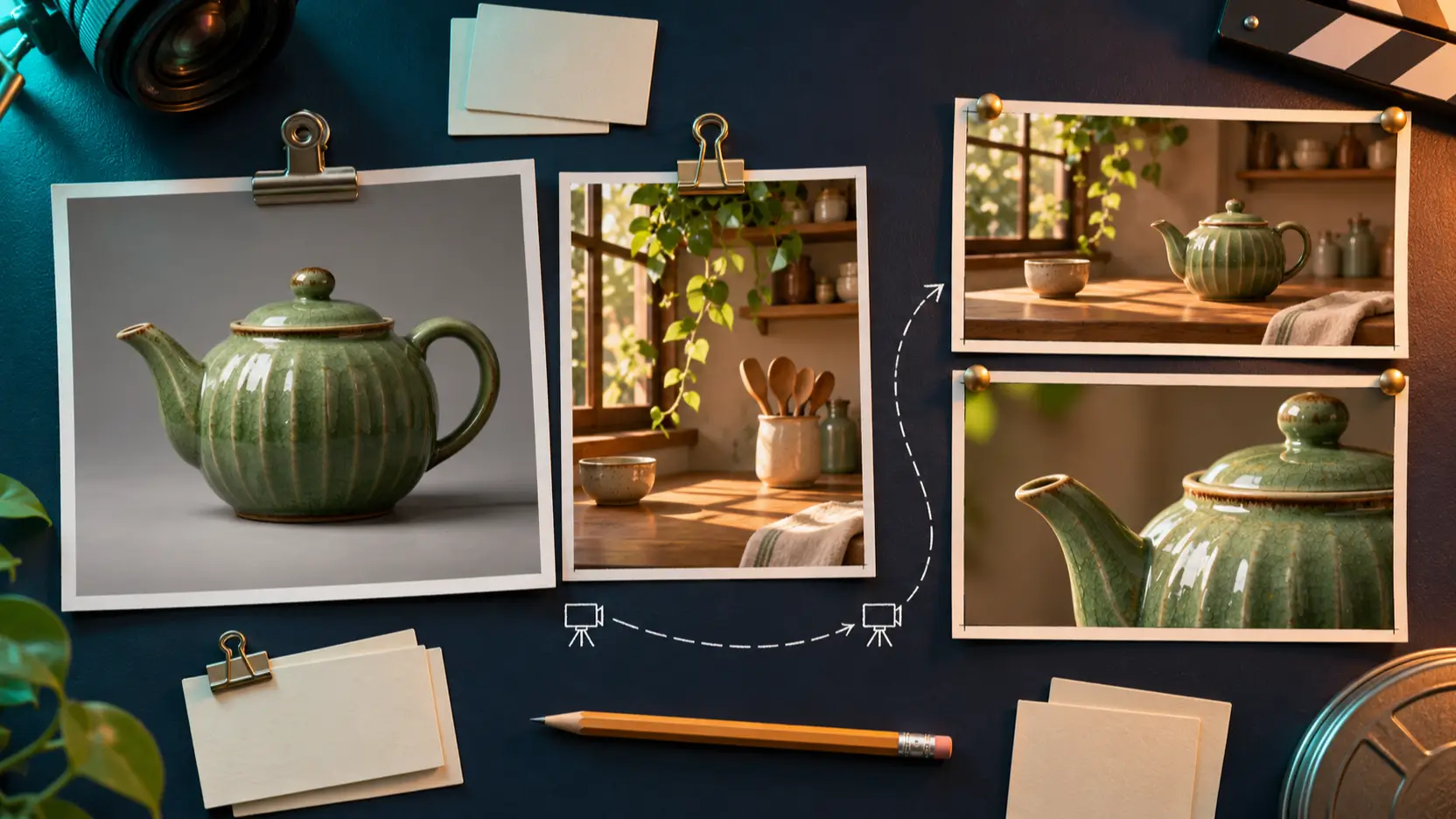
Start with a subject reference and add a setting reference only if the location matters. For a teapot advertisement, use a clear photograph that shows the handle, spout, lid, and glaze. A second image can establish the kitchen lighting. Avoid supplying several contradictory product angles before you know which detail is causing trouble.
Give every attachment a job. Tell the model which image defines the product and which defines the room. If an opening or closing composition is essential, prepare those frames deliberately and select the corresponding operation. Otherwise, a subject photograph and a written camera instruction may be enough for the first draft.
Need to prepare a cleaner visual brief? Picir's guide to image creation and editing covers a related stage of the process. Save an approved reference before moving into animation so later revisions have a stable visual target.
A Practical First Video: One Product, One Camera Move
Choose a shot with a clear pass or fail condition. An eight-second teapot shot is a useful starting example: one object, one setting, and one slow camera movement. Select 16:9 for a landscape placement or 9:16 for a vertical placement, and decide which product details must remain visible.
Here is an original prompt template, not a tested result:
Use the first image for the green ceramic teapot and the second for the kitchen setting. Create one continuous eight-second shot. Move the camera slowly closer to the teapot on the wooden table in warm morning light. Keep the handle, spout, lid, and glaze consistent. Keep the whole teapot visible at the end. Sound: quiet room ambience and distant birds. No music, speech, captions, or cuts.
Start at a draft resolution suited to judging composition. Google's launch workflow recommends working at 360p or 720p and upscaling selected takes to 1080p or 4K. The company also describes conversational changes to lighting, backgrounds, and other scene details. Google Cloud's launch overview.
After the first render, change one instruction at a time. If the framing is good but the light is harsh, ask for softer light while preserving the camera movement and object. Save both versions. Compare the revised take with the original to catch unintended changes.
Inspect Motion and Sound Before Finishing
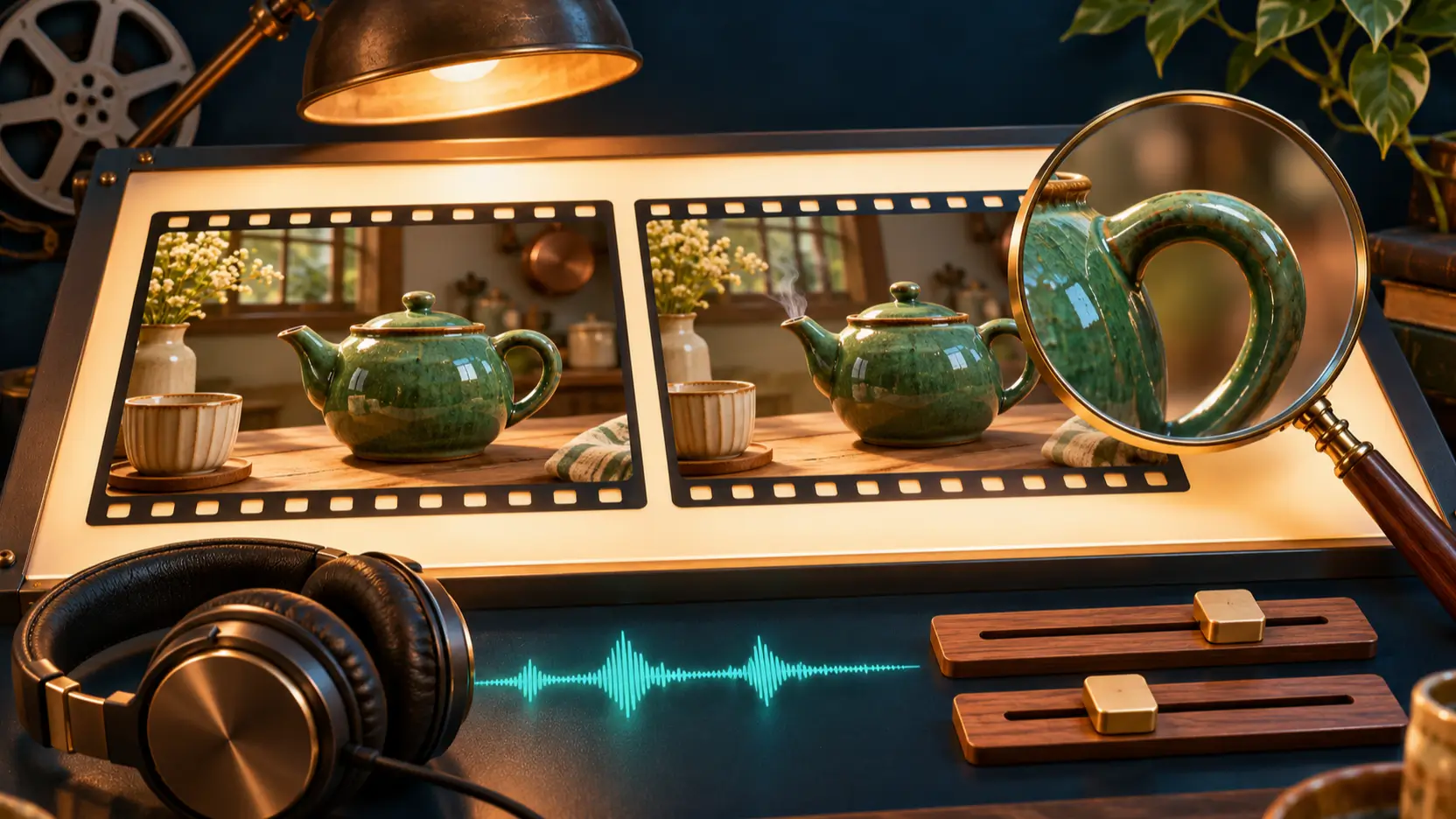
Watch the clip once at normal speed, then pause around the closest view. Check whether the handle joins the body naturally, the lid stays attached, and the spout keeps its shape. Listen separately for unexpected speech, intrusive music, or sounds that do not fit the scene. Finally, compare the opening and closing frames with your references.
Google identifies fast sports action, rapid script changes, and complex physics as areas still being improved. That makes a calm product shot a sensible initial evaluation, although it does not guarantee success. Launch limitations.
For another practical prompting perspective, see Picir's Sora 2 video guide. Use its planning ideas to refine your brief while keeping model-specific settings separate.
Where to Start and What Access Does Not Guarantee
Developers can begin in Google AI Studio or use the Gemini API; Cloud users can use Google's console and API. Verify that the selected model is the exact 1.2 Flash version before testing. Google's announcement links to these starting points. Official access links.
Generated sound and uploaded audio references are different capabilities. Google Cloud explicitly says audio references require allowlisting. Do not assume an account that can generate speech can also accept your voice reference. Confirm eligibility on the service you intend to use. Cloud audio-reference restriction.
FAQ
Does it generate standalone images?
The Cloud model reference lists image input but does not support standalone image generation or image editing. Use a dedicated image tool to prepare still references; then supply those images to the video workflow.
Is there a free Gemini API tier for this model?
No. The current Gemini API pricing table lists this model as paid-tier only. That API rule should not be used to infer allowances in Google's consumer apps or another provider's subscription.
Can I make a 15-second clip from first and last frames?
The documented first-and-last-frame operation supports 3–10 seconds. Standard generation can reach 15 seconds, but that higher limit does not override the endpoint-frame restriction. Shorten the shot or change the operation.
Conclusion
Gemini Omni 1.2 Flash is worth evaluating through a small, repeatable video brief. Confirm your route's limits, calculate the cost of multiple attempts, and review motion and sound before finishing. Save the accepted prompt alongside its references and settings for the next shot.