
How to Use Picir Marketing Studio for Image and Video Ads
on 11 hours ago
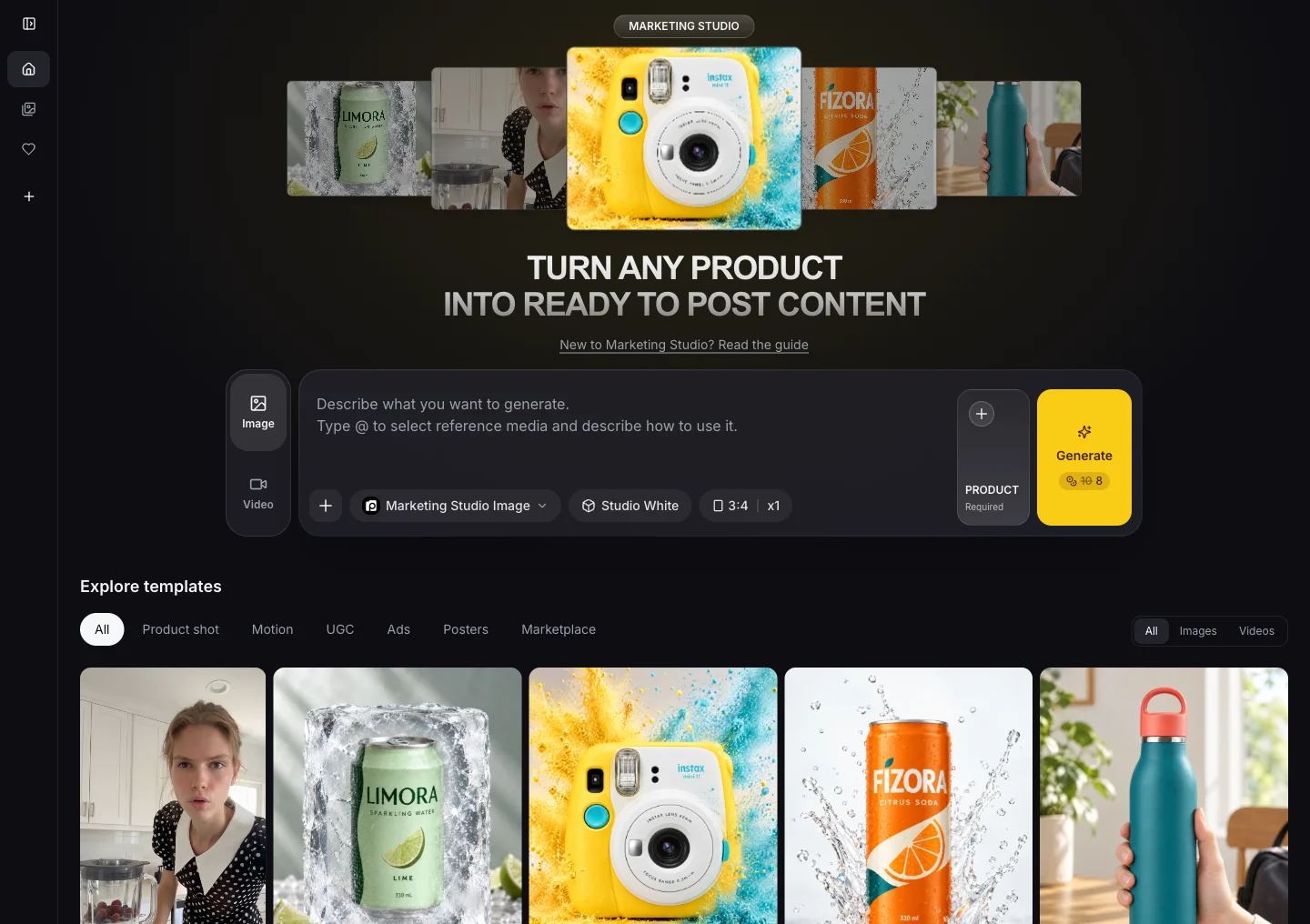
Picir Marketing Studio helps you turn product photos into ready-to-use image and video ad creatives, faster and with less setup. Create a clean product image, a lifestyle visual, or a creator-led video by choosing a visual direction, adding your product, and describing what you want to see.
You have two starting points: Style for your own creative idea, and templates for a complete concept you can quickly recreate with your product and presenter. This guide walks through both, including a 15-second perfume video you can try yourself.
Style or template: which should you choose?
A Style sets the visual approach. You decide the scene, the content, and—when making a video—the actions and dialogue. For example, Selfie UGC gives a video a casual, smartphone-shot creator feel; your prompt tells the creator what to do and say.
A template already includes a complete creative plan: the setting, content, actions, and script. Choose one that fits your product, replace the product and avatar where available, and recreate the concept. You can also request specific changes without writing a new script.
| Style | Template | |
|---|---|---|
| Starting point | A visual direction | A complete creative concept |
| Your input | Your scene, actions, and script | Your product, an avatar where supported, and any edits |
| Best for | Creating something original or substantially different | Quickly recreating a concept that already fits your product |
| Perfume example | Write your own bedroom review using Selfie UGC | Use Everyday Perfume Review and replace the bottle and presenter |
Choose a template for a similar type of product. A perfume review is a useful starting point for another perfume because the bottle presentation, wrist spray, and scent commentary still make sense. If you are advertising a blender—or want a very different story—use Style and describe the content yourself.
First, add your product
Open Marketing Studio and sign in when prompted. In the generator, select Choose product, then pick a saved product or choose Add product.
Give the product a name, add a description if useful, and upload 1–5 photos of the same product. Use clear views of the item: a front view, another angle, and a close-up of important details can help show its appearance. Keep the product, color, and packaging consistent across the photos; this is not a way to submit five different products at once.
The uploader accepts JPG, PNG, or WebP files up to 20 MB each. Save with Create product, then select the product for your image or video. You can reuse the saved product in later creations.
How to create image ads
- In the generator, choose Image. On a phone, tap Generate on the Studio home page to open the generator first.
- Open the Style selector and choose an image style under Product shot.
- Select your product.
- Describe the image you want: the setting, background, lighting, composition, and any space you need for ad copy.
- Check the available image settings and the credit amount shown on Generate, then generate your image.
The image styles provide different starting points:
- Studio White: a clean white background with the product clearly presented.
- Color Pop: a bold color background and a more striking advertising look.
- Natural: a warm lifestyle setting with natural light and textured surfaces.
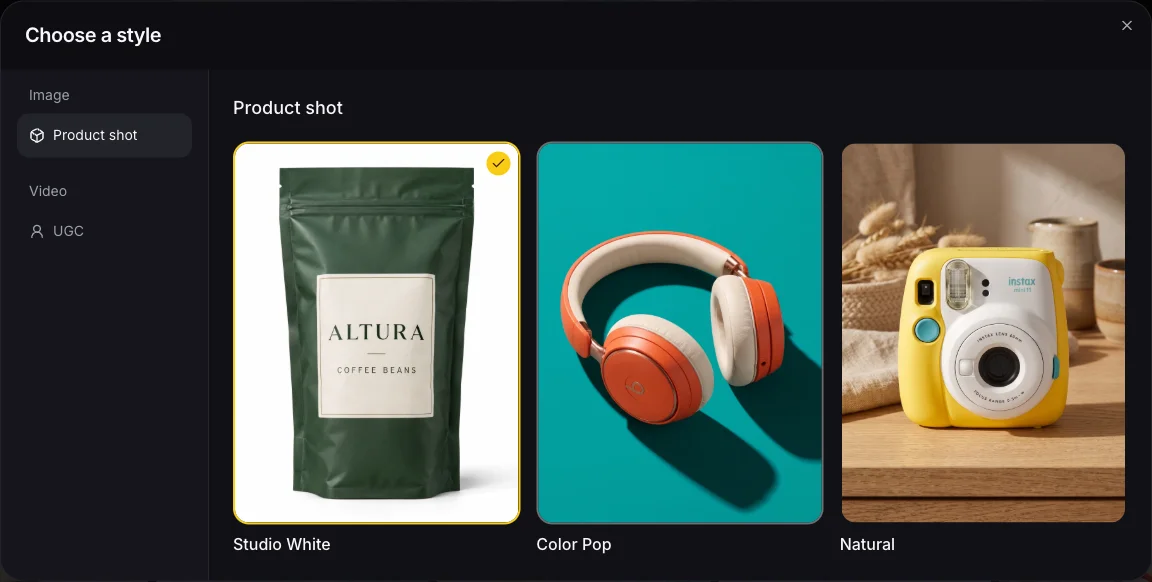
For a perfume image, choose Natural and try this prompt:
Place the perfume bottle on a light stone bedside table in a softly
sunlit bedroom. Keep the bottle shape, color, cap, and label consistent
with the product photos. Use a warm, clean atmosphere and leave some
uncluttered space on the right for ad copy. No added text.
Your selected Style provides the visual direction, while the prompt makes the composition specific to your campaign. Find the finished image in My generations, review it, and download the version you want to use.
How to create video ads
For a custom video, choose Video, open Style, and select a video style. Add your product, choose an Avatar for a creator-led video, and describe the scene, actions, and spoken lines in the prompt box.
The avatar is the person appearing in the video. Use Choose avatar to select a presenter from the library or add your own character reference. Your product photos define the item; the avatar reference defines the presenter; your prompt defines what happens on screen.
Before generating with a video Style, choose the duration and aspect ratio. Match the duration to your script and the format to where you plan to use the video. These are the two settings you can adjust; resolution and audio are set automatically. The button shows the credit amount before you submit.
Example: a 15-second perfume video with Selfie UGC
In Marketing Studio, select Video, then open Style → Video → UGC → Selfie UGC.
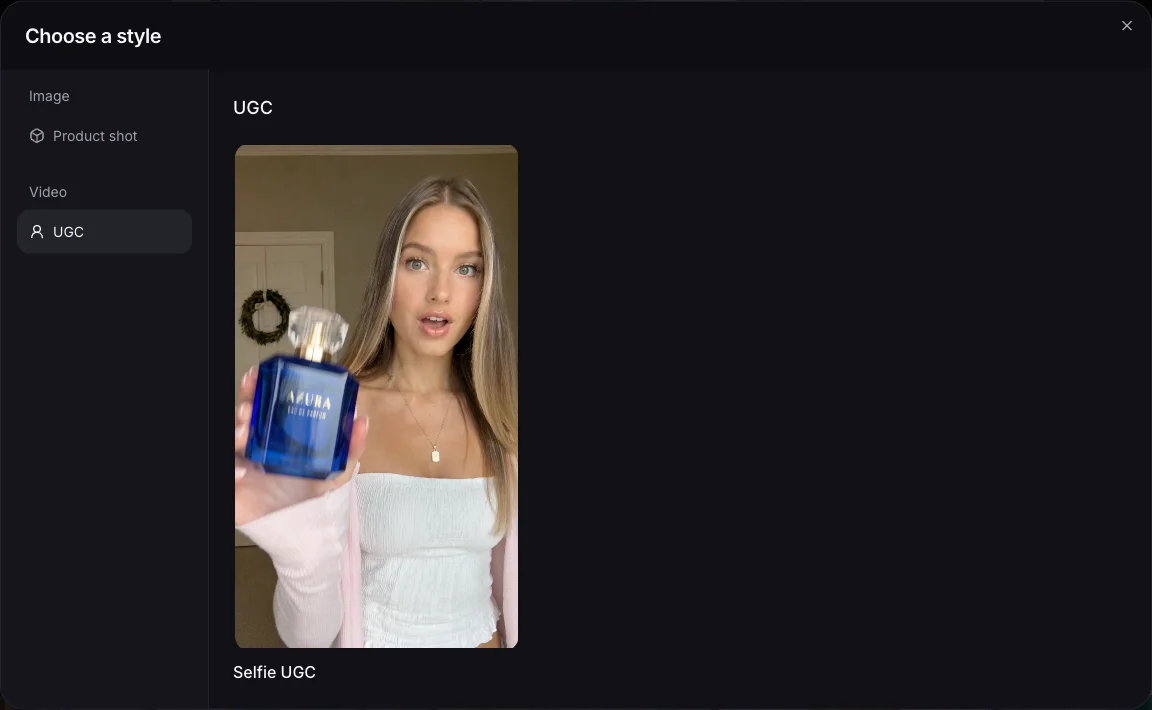
Select your perfume product, using 1–5 photos of that same perfume, and choose an adult female avatar for this example. Set the duration to 15 seconds and use a vertical 9:16 format for a portrait video.
Paste the following into the prompt box:
Adult female creator in her bedroom, filming herself on a smartphone.

0–3 sec: She brings the perfume close to the camera and says: “Okay, I finally found a perfume that actually lasts.”

3–6 sec: She clearly shows the perfume bottle and sprays it once on her wrist.

6–10 sec: She smells her wrist, smiles and says: “I put this on in the morning, and I can still smell it hours later.”

10–13 sec: She holds the bottle and says: “And it has such a fresh, clean scent.”

13–15 sec: She puts the perfume in her handbag and says: “This is coming with me everywhere.” End with a clear perfume shot.
Click Generate. The model uses your scene description and script to create a UGC-style video, with the selected product and presenter as references. Selfie UGC supplies the casual filming style; the bedroom setting, wrist spray, dialogue, and closing product shot come from your prompt.
The timestamps communicate the intended pacing rather than guaranteeing frame-exact timing. If the dialogue feels rushed, shorten the lines or simplify the actions. Adapt the example's product claims to the perfume you are actually promoting.
Watch the generated perfume UGC video
Here is the video generated for the perfume script above using Selfie UGC. Watch how the scene description becomes a creator-led product ad, from presenting the bottle and spraying it on a wrist to the closing product shot. Your results will vary with your product photos, selected avatar, and prompt.
Generated result for the perfume script above · Selfie UGC · 15 seconds. Press play to watch with sound.
Review your own finished video in My generations. Check the product appearance, actions, and dialogue, then download it for your ad or social post. If you want a different opening or ending, revise those instructions and generate another version.
How to recreate a template
Use the Explore templates section on the Marketing Studio home page when you want a complete concept to start from. Filter by Images or Videos, and choose a category to narrow the selection.
For the perfume example, open Everyday Perfume Review:
- Preview the template to check that its story fits your product.
- Under Replace product, upload or select your perfume.
- Under Replace avatar, choose the presenter you want to appear.
- Use Describe your edit for any specific changes, or leave it empty to follow the template's existing plan.
- To change the output format, open the compact aspect ratio dropdown below the edit box, on the right. It shows the current ratio. Both image and video templates let you select another available format.
- Check the displayed credit amount and click Recreate.
Video template duration is fixed. Everyday Perfume Review produces a 15-second video; changing its aspect ratio does not change its length. To choose your own video duration and script, create with Style instead. The template preview shows the original example; your selected aspect ratio applies to the new result.
For a small change, you could enter:
Keep the bedroom setting and the wrist-spray demonstration.
Change the final line to “My new everyday favorite.”
End with the bottle held close to the camera instead of placed in a handbag.
The same approach works for image templates: choose a suitable composition, replace the product, and describe any adjustments. Avatar replacement is available on templates that include a presenter.
A template helps you recreate the same overall content and structure with your own assets; the generated result may still vary. If you need to change the product category, setting, actions, and script together, switch to Style for a fresh creative direction.
Make your first ad creative
Start with one product and one clear idea. Use a template for a quick recreation, or use Style to bring your own image concept or video script to life in Picir Marketing Studio.
Need a particular template, a new style, or help with a result? We would love to hear your requests, feedback, and suggestions. Open the online feedback bubble at the bottom-right of this page, or email [email protected] at any time.